techOct 30, 2026
How to use WinApps with VMware Workstation Windows guest
If you prefer VMware Workstation for your Linux hypervisor for some reason, here it is
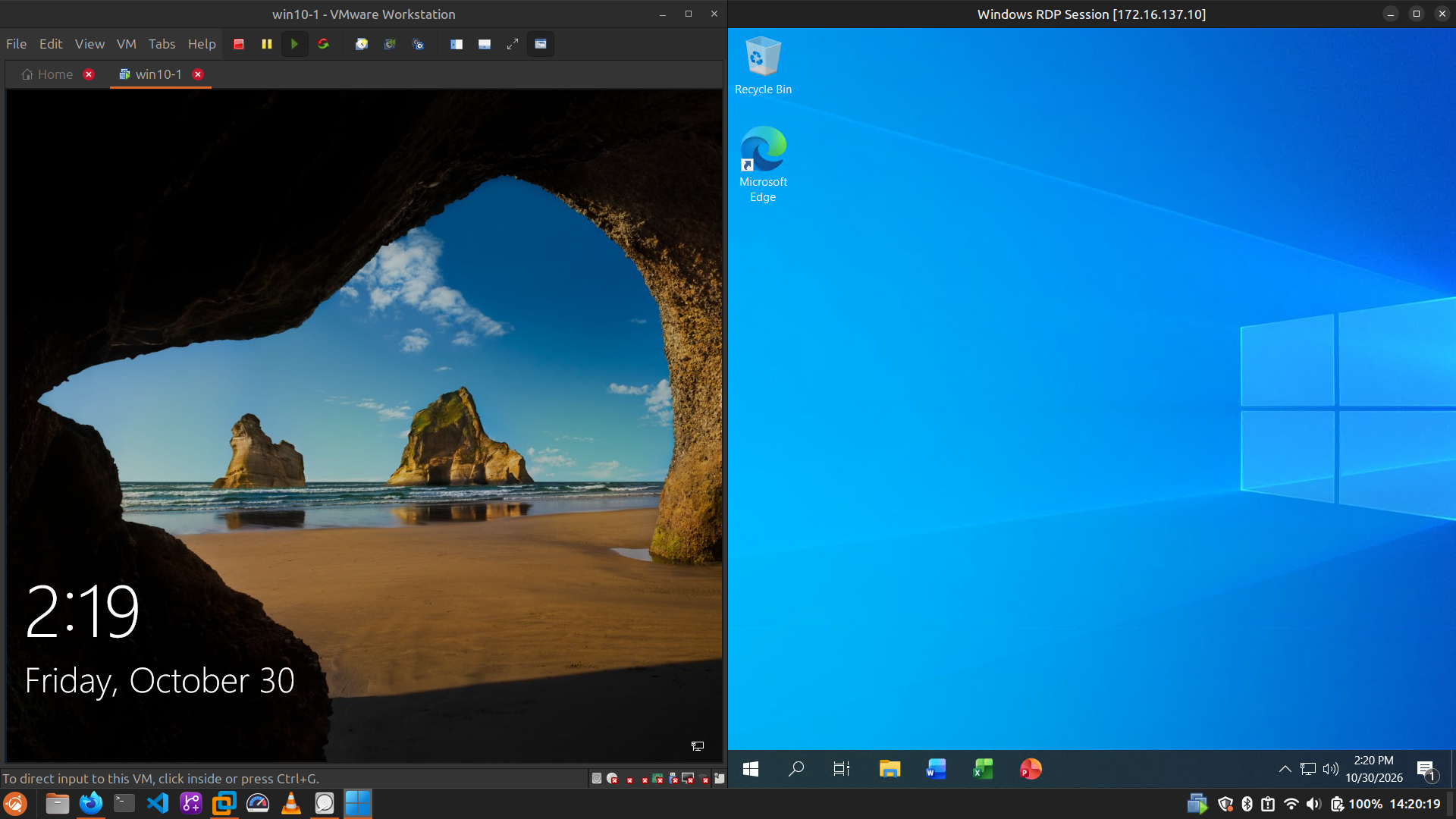
Windows Guest configuration
- Create a new Windows VM (if not exists yet)
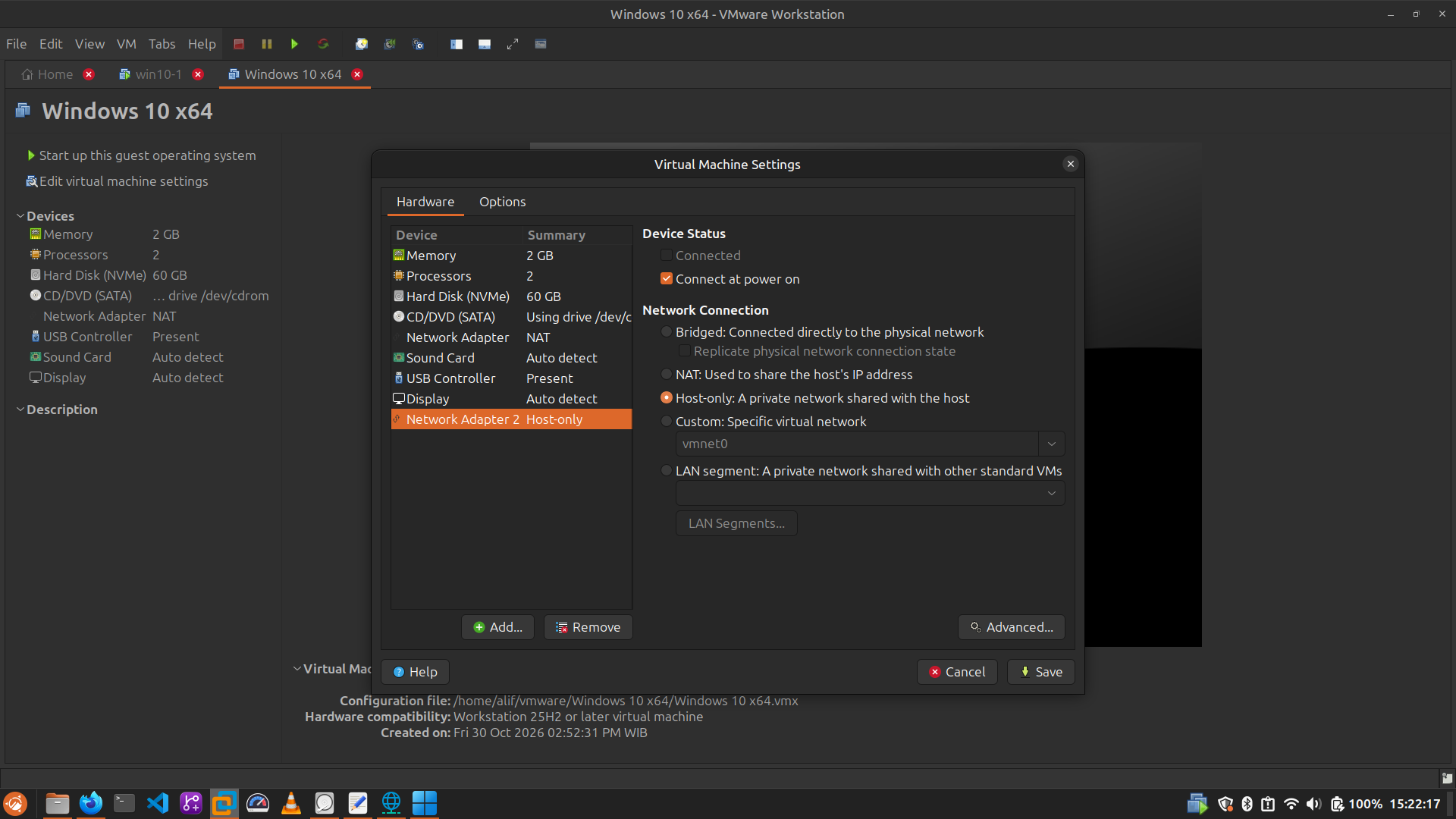
- Add host-only network adapter
- Edit Virtual Machine Settings -> Hardware -> Add -> Network Adapter -> Network Adapter 2 -> Network Connection -> Select Host-only
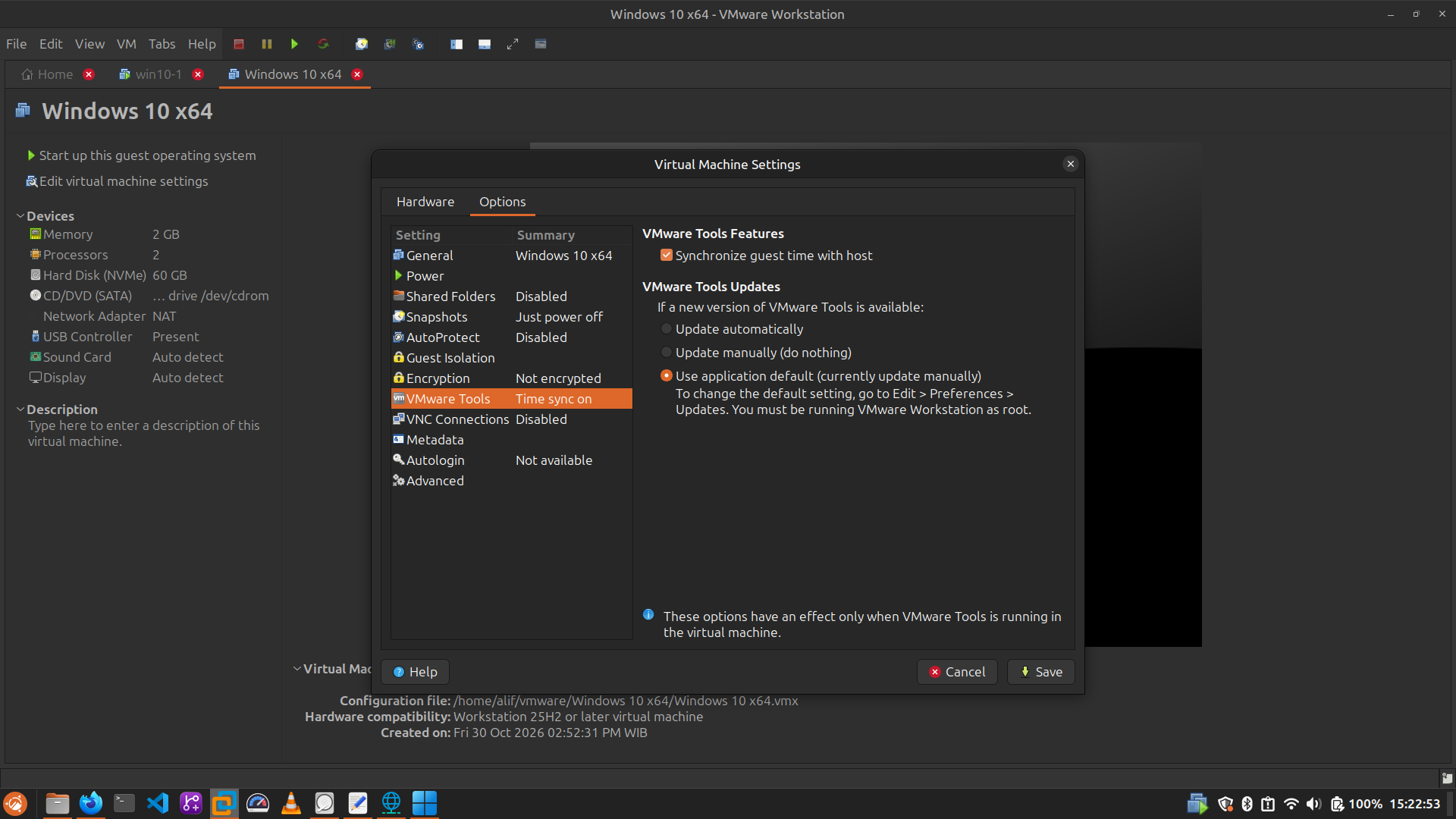
- Enable guest time-syncing with host
- Edit Virtual Machine Settings -> Options -> VMware Tools -> Check Synchronize guest time with host
- Then boot the VM and install Windows 10+ on your VMware, you probably know how to do this
- Use local account, since RDP need user account with password, use password for your local account
- Install VMware Tools
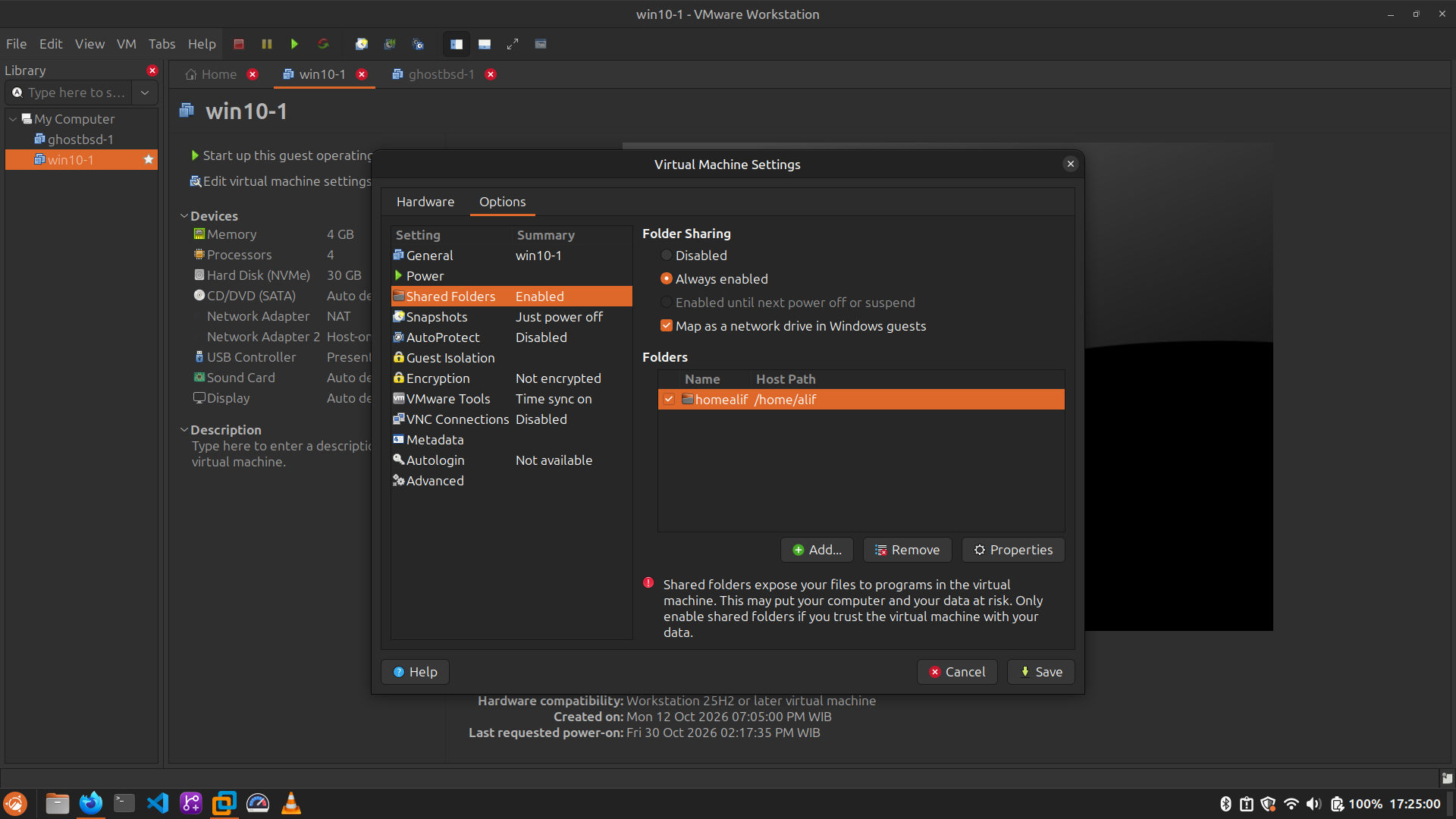
- Enable shared folder for filesystem sharing, since WinApps only can share your home folder (Issues #601), this is very useful primarily if you mount NTFS partition or working on file outside your home folder
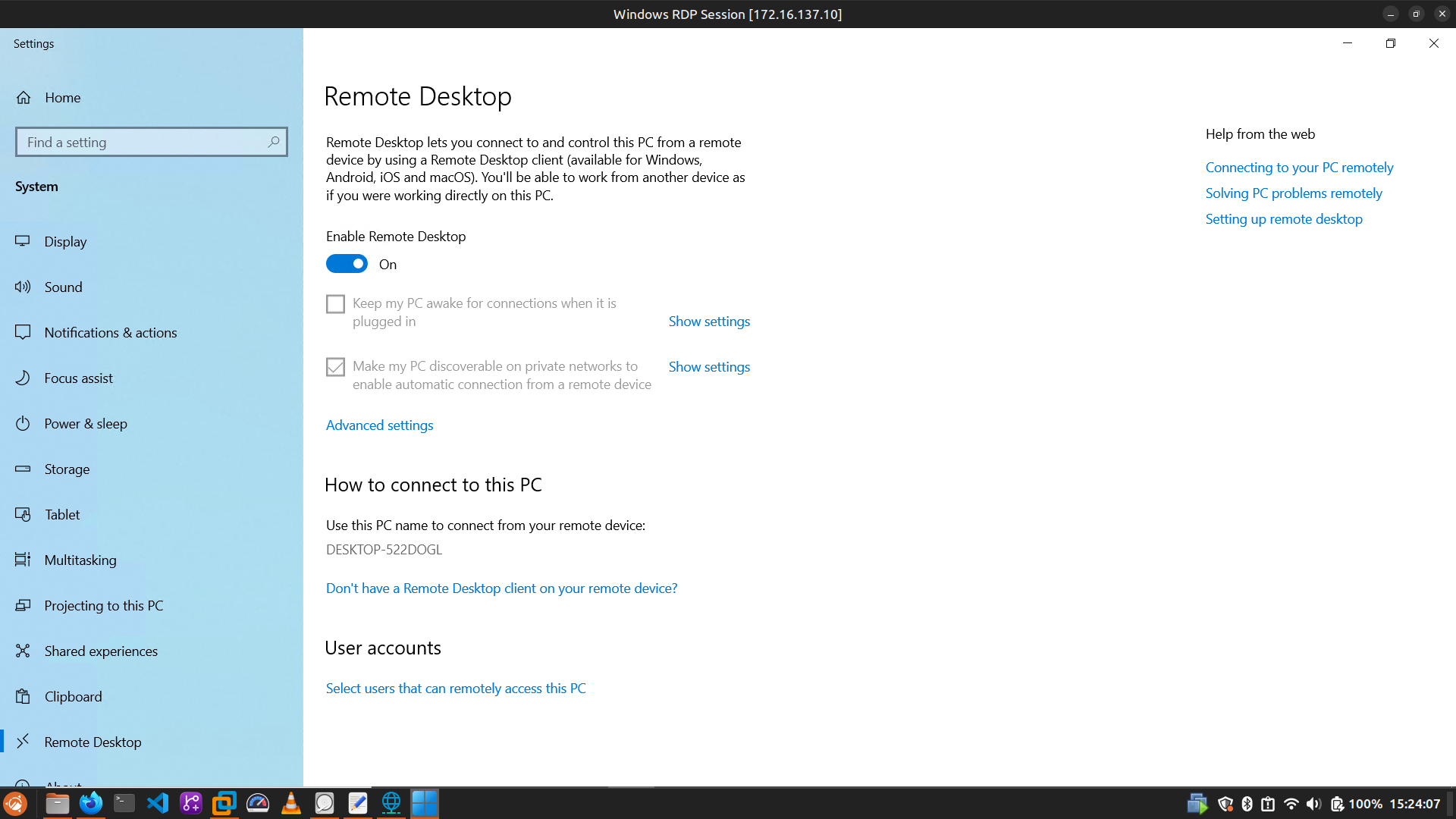
- Enable remote desktop on your Windows guest
- Settings -> System -> Remote desktop -> Enable Remote Desktop
- Download and run this file on your Windows:
- https://github.com/winapps-org/winapps/blob/main/oem/RDPApps.reg
- https://github.com/winapps-org/winapps/blob/main/oem/NetProfileCleanup.ps1 (Run as Administrator)
- Open Control Panel
- Go to:
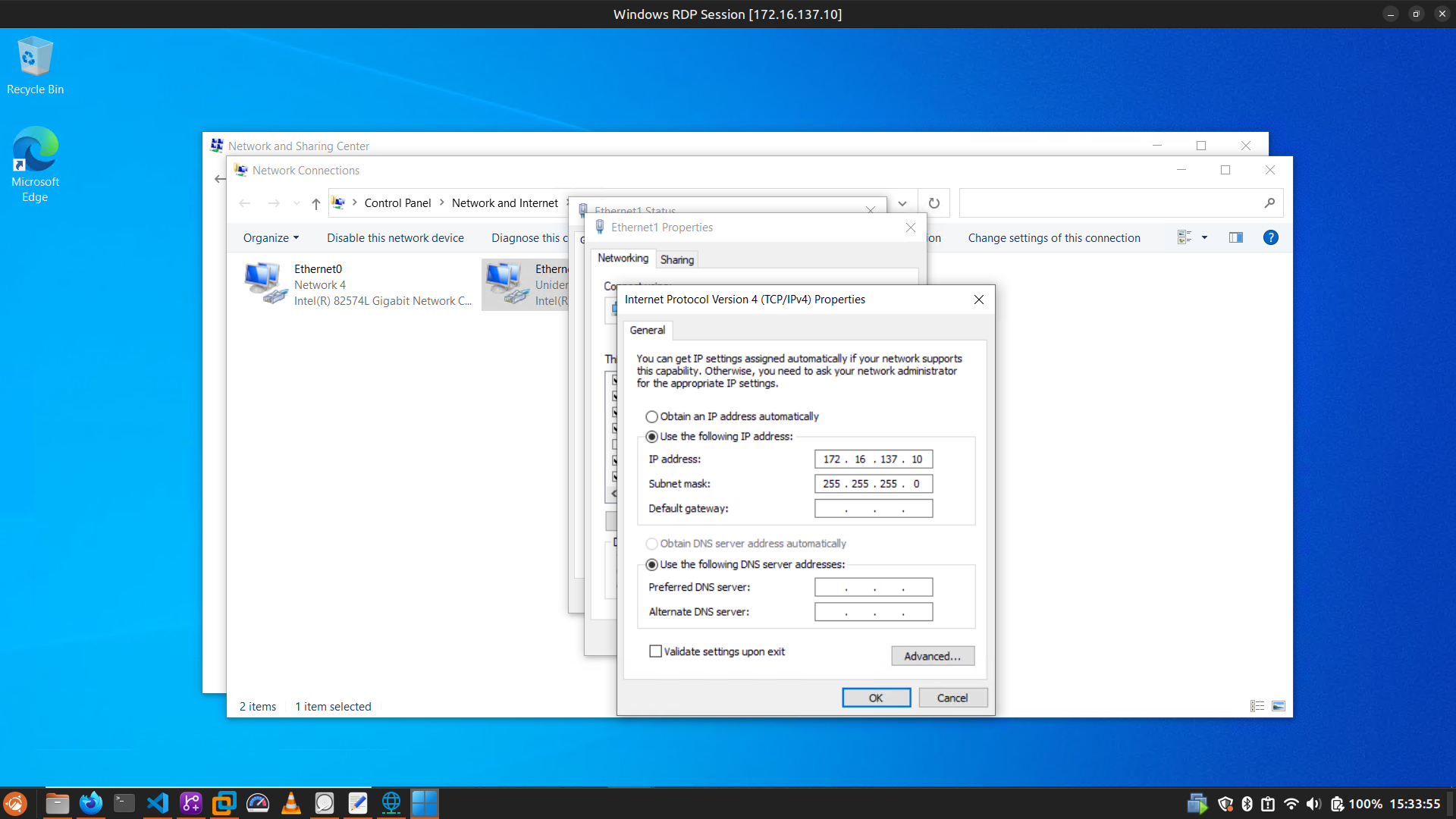
Control Panel\Network and Internet\Network Connections - Select Ethernet 1 with
Unidentified Networkstatus - Go to Properties -> Internet Protocol Version 4 (TCP/IPv4)
- Select
Use the following IP addresswe’re making this IP static, for Linux host VMware use subnet172.16.137.0, so we just fill IP address with172.16.137.10,255.255.255.0for subnet mask, and left empty for default gateway
Linux Host Configuration
- Just for make sure, open Virtual Network Editor, check host-only virtual network named
vmnet1, look forSubnet IP, if its configured to use172.16.137.0let it as is, if that192.168.218.0or other than172.16.137.0, replace that with172.16.137.0. - Install WinApps depedency, look here
- Create a WinApps Configuration File
mkdir -p ~/.config/winapps
nano ~/.config/winapps/winapps.conf- Fill the configuration with the following:
##################################
#   WINAPPS CONFIGURATION FILE   #
##################################

# INSTRUCTIONS
# - Leading and trailing whitespace are ignored.
# - Empty lines are ignored.
# - Lines starting with '#' are ignored.
# - All characters following a '#' are ignored.

# [WINDOWS USERNAME]
RDP_USER="MyWindowsUser"

# [WINDOWS PASSWORD]
# NOTES:
# - If using FreeRDP v3.9.0 or greater, you *have* to set a password
# - RDP_ASKPASS is provided as a more secure option to RDP_PASS:
#   - Calls an external command and uses its stdout as the password
#   - The password is not passed on the command line to freerdp, keeping it out of logs
#   - If specified, takes precedence over RDP_PASS
#   - Examples to use this:
#     - RDP_ASKPASS="~/some-custom-command"
#     - RDP_ASKPASS="bash -c 'cat ~/.some-secret-file'"
#     - RDP_ASKPASS="bash -c 'kwallet-query --folder winapps --read-password rdp kdewallet'"
#
RDP_PASS="MyWindowsPassword"
RDP_ASKPASS=""

# [WINDOWS DOMAIN]
# DEFAULT VALUE: '' (BLANK)
RDP_DOMAIN=""

# [WINDOWS IPV4 ADDRESS]
# NOTES:
# - If using 'libvirt', 'RDP_IP' will be determined by WinApps at runtime if left unspecified.
# DEFAULT VALUE:
# - 'docker': '127.0.0.1'
# - 'podman': '127.0.0.1'
# - 'libvirt': '' (BLANK)
RDP_IP="172.16.137.10"

# [RDP PORT]
# NOTES:
# - For Docker and Podman, this is the host port mapped to Windows port 3389.
# - If you changed the host-side RDP port in compose.yaml, set this to match.
# DEFAULT VALUE: '3389'
RDP_PORT="3389"

# [VM NAME]
# NOTES:
# - Only applicable when using 'libvirt'
# - The libvirt VM name must match so that WinApps can determine VM IP, start the VM, etc.
# DEFAULT VALUE: 'RDPWindows'
VM_NAME="RDPWindows"

# [WINAPPS BACKEND]
# DEFAULT VALUE: 'docker'
# VALID VALUES:
# - 'docker'
# - 'podman'
# - 'libvirt'
# - 'manual'
WAFLAVOR="manual"

# [DISPLAY SCALING FACTORS]
# NOTES:
# - RDP_SCALE sets RemoteApp scaling. RDP_DESKTOP_SCALE sets scaling for 'winapps windows'.
# - Values outside 100-500 are set to the nearest limit. Non-integer scales stop the launch.
# - WinApps keeps the exact scale and rounds the device scale, used by MS Store (UWP) apps, to the nearest 100, 140 or 180.
# DEFAULT VALUES:
# - RDP_SCALE: '100'
# - RDP_DESKTOP_SCALE: 'inherit' (use RDP_SCALE)
# VALID VALUES:
# - Integers from '100' to '500'
# - 'inherit' for RDP_DESKTOP_SCALE
RDP_SCALE="100"
RDP_DESKTOP_SCALE="inherit"

# [MOUNTING REMOVABLE PATHS FOR FILES]
# NOTES:
# - By default, `udisks` (which you most likely have installed) uses /run/media for mounting removable devices.
#   This improves compatibility with most desktop environments (DEs).
# ATTENTION: The Filesystem Hierarchy Standard (FHS) recommends /media instead. Verify your system's configuration.
# - To manually mount devices, you may optionally use /mnt.
# REFERENCE: https://wiki.archlinux.org/title/Udisks#Mount_to_/media
REMOVABLE_MEDIA="/run/media"

# [ADDITIONAL FREERDP FLAGS & ARGUMENTS]
# NOTES:
# - You can try adding /network:lan to these flags in order to increase performance, however, some users have faced issues with this.
#   If this does not work or if it does not work without the flag, you can try adding /nsc and /gfx.
# DEFAULT VALUE: '/cert:tofu /sound /microphone +home-drive'
# VALID VALUES: See https://github.com/awakecoding/FreeRDP-Manuals/blob/master/User/FreeRDP-User-Manual.markdown
RDP_FLAGS="/cert:tofu /sound /microphone +home-drive"

# [NON FULL WINDOWS RDP FLAGS]
# NOTES:
# - Use these flags to pass specific flags to the freerdp command when you are starting a non-full RDP session (any other command than winapps windows)
# DEFAULT_VALUES: ''
# VALID_VALUES: See https://github.com/awakecoding/FreeRDP-Manuals/blob/master/User/FreeRDP-User-Manual.markdown
RDP_FLAGS_NON_WINDOWS=""

# [FULL WINDOWS RDP FLAGS]
# NOTES:
# - Use these flags to pass specific flags to the freerdp command when you are starting a full RDP session (winapps windows)
# DEFAULT_VALUES: ''
# VALID_VALUES: See https://github.com/awakecoding/FreeRDP-Manuals/blob/master/User/FreeRDP-User-Manual.markdown
RDP_FLAGS_WINDOWS=""

# [DEBUG WINAPPS]
# NOTES:
# - Creates and appends to ~/.local/share/winapps/winapps.log when running WinApps.
# DEFAULT VALUE: 'true'
# VALID VALUES:
# - 'true'
# - 'false'
DEBUG="true"

# [AUTOMATICALLY PAUSE WINDOWS]
# NOTES:
# - This is currently INCOMPATIBLE with 'manual'.
# DEFAULT VALUE: 'off'
# VALID VALUES:
# - 'on'
# - 'off'
AUTOPAUSE="off"

# [AUTOMATICALLY PAUSE WINDOWS TIMEOUT]
# NOTES:
# - This setting determines the duration of inactivity to tolerate before Windows is automatically paused.
# - This setting is ignored if 'AUTOPAUSE' is set to 'off'.
# - The value must be specified in seconds (to the nearest 10 seconds e.g., '30', '40', '50', etc.).
# - For RemoteApp RDP sessions, there is a mandatory 20-second delay, so the minimum value that can be specified here is '20'.
# - Source: https://techcommunity.microsoft.com/t5/security-compliance-and-identity/terminal-services-remoteapp-8482-session-termination-logic/ba-p/246566
# DEFAULT VALUE: '300'
# VALID VALUES: >=20
AUTOPAUSE_TIME="300"

# [FREERDP COMMAND]
# NOTES:
# - WinApps will attempt to automatically detect the correct command to use for your system.
# DEFAULT VALUE: '' (BLANK)
# VALID VALUES: The command required to run FreeRDPv3 on your system (e.g., 'xfreerdp', 'xfreerdp3', etc.).
FREERDP_COMMAND=""

# [TIMEOUTS]
# NOTES:
# - These settings control various timeout durations within the WinApps setup.
# - Increasing the timeouts is only necessary if the corresponding errors occur.
# - Ensure you have followed all the Troubleshooting Tips in the error message first.

# PORT CHECK
# - The maximum time (in seconds) to wait when checking if the RDP port on Windows is open.
# - Corresponding error: "NETWORK CONFIGURATION ERROR" (exit status 13).
# DEFAULT VALUE: '5'
PORT_TIMEOUT="5"

# RDP CONNECTION TEST
# - The maximum time (in seconds) to wait when testing the initial RDP connection to Windows.
# - Corresponding error: "REMOTE DESKTOP PROTOCOL FAILURE" (exit status 14).
# DEFAULT VALUE: '30'
RDP_TIMEOUT="30"

# APPLICATION SCAN
# - The maximum time (in seconds) to wait for the script that scans for installed applications on Windows to complete.
# - Corresponding error: "APPLICATION QUERY FAILURE" (exit status 15).
# DEFAULT VALUE: '60'
APP_SCAN_TIMEOUT="60"

# WINDOWS BOOT
# - The maximum time (in seconds) to wait for the Windows VM to boot if it is not running, before attempting to launch an application.
# DEFAULT VALUE: '120'
BOOT_TIMEOUT="120"

# FREERDP RAIL HIDEF
# - This option controls the value of the `hidef` option passed to the /app parameter of the FreeRDP command.
# - Setting this option to 'off' may resolve window misalignment issues related to maximized windows.
# DEFAULT VALUE: 'on'
HIDEF="on"
Don’t forget to change RDP_USER and RDP_PASS Parameter
- Set config file permission so only you who can read or write it (because that containing your Windows guest password)
chown $(whoami):$(whoami) ~/.config/winapps/winapps.conf
chmod 600 ~/.config/winapps/winapps.conf- Test connection with following command:
xfreerdp3 /u:"MyWindowsUser" /p:"MyWindowsPassword" /v:172.16.137.10:3389 /cert:tofuIf Windows desktop appears, you good to continue
- You can install WinApps and add your Windows app to Linux desktop, look here